How field sales reps get in-person meeting notes into Salesforce
Author: Rachel Stewart, co-founder, Listel
Field sales reps get in-person meeting notes into Salesforce by recording the conversation hands-free and syncing it from their phone when the meeting ends. With Listel, the rep records from the Listel wearable, the Apple Watch app or the phone app, reviews and edits the summary, highlights and next steps on their phone, and syncs. Each meeting lands on one Salesforce Event with a "Listel notes" note, the transcript and, by default, a recap PDF, so the face-to-face meeting is on the record the same day and nobody has to type it up from memory.
The memory problem behind thin Salesforce records
Most Salesforce activity history is written after the fact. A rep leaves a customer's office, drives to the next appointment, takes a call in the car, and sits down to log the day hours later. By then the details have faded. The buyer's real objection, the name of the person who joined halfway through, the exact thing the rep promised to send: those are the first to go.
We called this the Memory Gap in stop blaming reps: is your CRM actually accurate?. Reps are good at the conversation. Recall after a full day of conversations is a different job, and it's where the record breaks down. The result is the Salesforce entry everyone recognizes: "Good meeting, will follow up."
The usual fixes add pressure without adding memory. Required fields and reminders still ask the rep to remember and type. As we wrote in why CRM systems fail in field sales, the fix has to happen upstream, during the conversation.
Why call tools miss in-person meetings
Call recorders and meeting assistants work well when the conversation happens on a video call or a phone line. Field sales happens across a desk, on a job site, over lunch or walking a customer's facility. Nothing joins those meetings, so nothing captures them. And asking a rep to hold a phone up in front of a buyer changes the conversation they came to have.
How to record an in-person meeting and sync it to Salesforce
1. An admin sets up Salesforce once
An admin connects Salesforce to Listel once for the whole organization and gives each rep the Listel Sync permission set. The admin's connection only reads. Every write runs as the rep's own Salesforce user.
2. Start from the meeting on your calendar
Once Salesforce is connected, each rep's Salesforce Events show up in the Listel app, from the last 2 days through the next 14, refreshed every 15 minutes. Reps can also pull to refresh. Recording from one of those meetings links the conversation to that Event, and it can sync automatically.
3. Pick the capture option that fits the moment
Listel gives reps three ways to capture a face-to-face meeting:
- The Listel wearable. Built for hands-free capture with no phone on the table, and a visible LED so recording is never hidden.
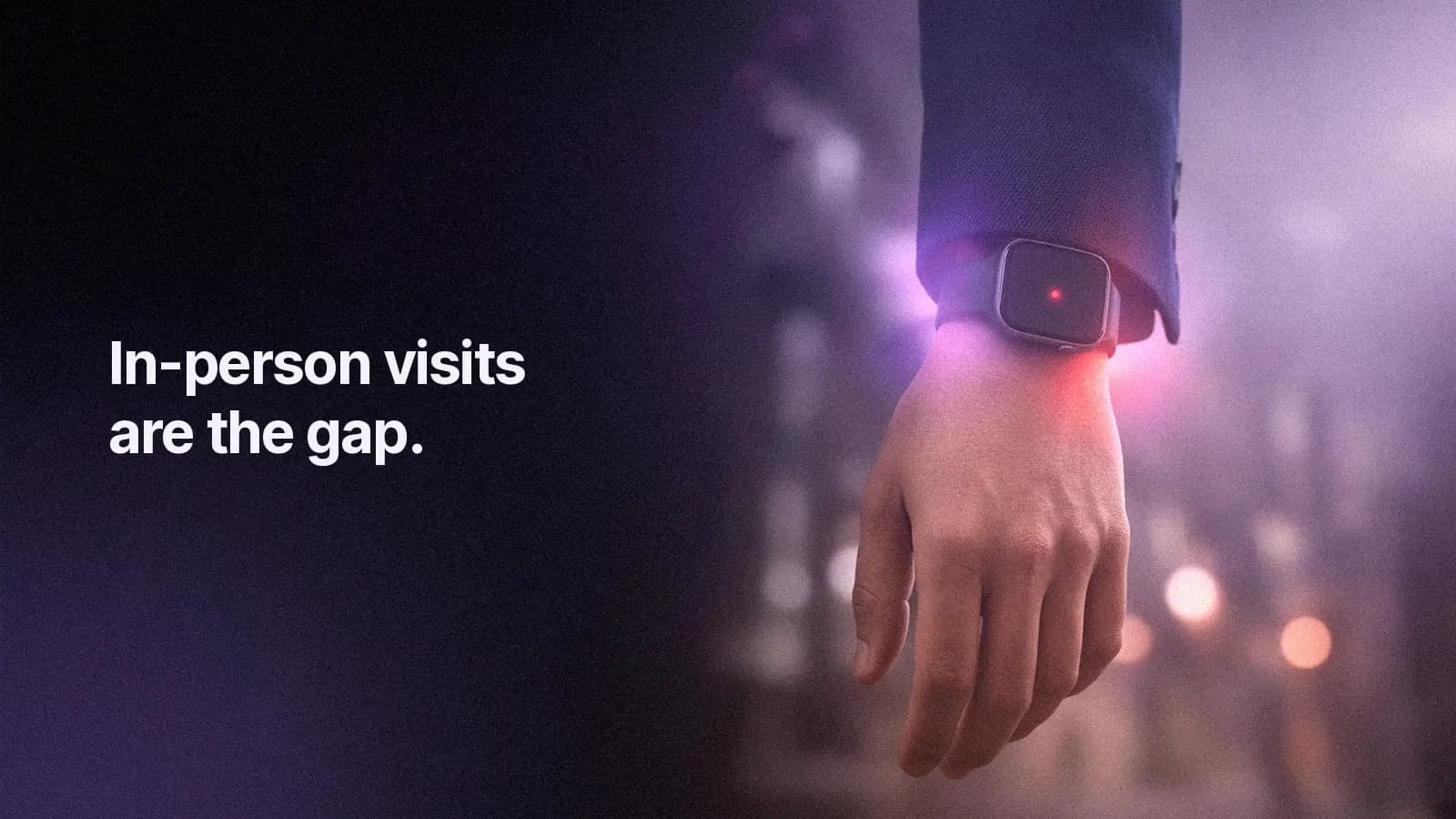
- The Listel Apple Watch app. An alternative to the wearable, for when the rep forgot the device, hasn't received one yet, or would rather use their Watch. Start it from the Listel app on the Watch, the Smart Stack, a Listel complication on the watch face, Siri, or the Action button on Apple Watch Ultra. The recording links to the rep's next calendar meeting and keeps going with the wrist down.
- The Listel phone app. For a sit-down meeting where a phone on the table is fine.
Listel also works offline, so a meeting in a basement office or a rural site still gets captured and uploads later.
4. Ask for consent, then talk
The rep asks at the start of the meeting, records once the customer agrees, and then gives the customer their full attention. See the consent section below.
5. Review on your phone
When the meeting ends, a Watch recording hands off to the iPhone. Listel transcribes the conversation and writes:
- A summary of what was discussed
- Highlights, such as pain points, objections and key decisions
- Next steps, including what the rep committed to
The rep reviews it on their phone and can edit the summary, highlights and next steps before anything goes to Salesforce. The transcript stays exactly as recorded.
6. Sync to Salesforce
The rep syncs from the phone. If the meeting was recorded from a Salesforce Event, it can sync automatically.
What lands in Salesforce
Each meeting syncs to one Salesforce Event:
- The right Event. That's the Event the rep recorded from, or the one used in an earlier sync of the same meeting. If there's neither, Listel creates a new Event, with the Subject from the calendar or session title, the start and end times from the actual recording, and the main matched contact.
- A "Listel notes" note. The summary, key points and next steps, attached to the Event. If your org has Notes turned off, this arrives as a .txt File instead.
- The transcript. Attached as a .txt File.
- The recap PDF. Attached as a File. It's on by default, and the workspace or the rep can turn it off.
- Other contacts in the room. Other matched contacts get a short timeline note linking to the Event. If the setting is on, Listel can create a Contact for anyone it couldn't match.
What Listel leaves alone matters just as much to admins:
- It never changes an existing Event's Subject or Description, and it never adds invitees.
- It creates no Tasks, and it never creates or edits Accounts.
- Re-syncing a meeting replaces the earlier Listel notes and files, so nothing is duplicated.
That gives a manager reviewing an opportunity something useful: who was there, what they cared about and what happens next, in the rep's own reviewed words. It also gives the next person on the account a head start, whether that's a sales engineer, a customer success manager or a rep taking over the territory.
What Salesforce admins and sales ops should know
- One-time setup. An admin connects Salesforce once for the whole organization and assigns each rep the Listel Sync permission set.
- Written as the rep. Writes run as the rep's own Salesforce user, so their permissions and sharing rules apply. The admin's connection only reads.
- Plans. CRM sync to Salesforce, HubSpot and Microsoft Dynamics 365 is included on Pro (the Core Seat) and Enterprise. Enterprise adds API access and AI agent data access. Dynamics 365 requires a separate D365 license. See pricing.
- Data. Each company owns its own data. Listel never sells customer data or trains on it.
- Mixed CRM environments. If part of your organization runs Dynamics 365, see the Dynamics 365 integration for how D365 sync works.
Getting consent for in-person recording
Recording a face-to-face meeting starts with asking. A simple line works: "Mind if I record this so I can focus on you instead of my notes? I'll send you a recap afterward." Record once the customer agrees, and stop if anyone would rather you didn't. If someone new joins partway through, ask again.
Consent and notice rules vary by state and country, and some customers have their own policies about recording on their premises. Align with your legal team on what reps say and where they record. This section is general guidance and should not be taken as legal advice.
Frequently asked questions
How do I log an in-person sales meeting to Salesforce?
Record the meeting with Listel using the wearable, the Apple Watch app or the phone app. Review and edit the summary, highlights and next steps on your phone, then sync. The meeting lands on one Salesforce Event, either the Event you recorded from or a new one, with a "Listel notes" note, the transcript and the recap PDF (on by default) attached.
Can I get face-to-face meeting notes into Salesforce without typing?
Yes. Listel transcribes the conversation and writes the notes for you. You review and edit the summary, highlights and next steps on your phone, then sync. The typing step is gone, and the notes are based on what was actually said.
Can I record an in-person meeting from my Apple Watch and sync it to Salesforce?
Yes. Start a recording from the Listel Watch app, the Smart Stack, a complication, Siri or the Action button on Apple Watch Ultra. It hands off to your iPhone for review and sync. The Watch app is an alternative to the Listel wearable, for when you forgot the device, don't have one yet, or prefer your Watch.
Will Listel change my Salesforce Events or create Tasks?
Listel never changes an existing Event's Subject or Description, never adds invitees, creates no Tasks, and never creates or edits Accounts. It attaches its notes and files to the Event, and re-syncing replaces the earlier Listel notes and files instead of duplicating them.
Which Listel plans include Salesforce sync?
Pro and Enterprise both include CRM sync to Salesforce, HubSpot and Microsoft Dynamics 365. An admin connects Salesforce once for the whole organization. See pricing.
Does Listel write to Salesforce as the admin?
No. Writes run as the rep's own Salesforce user, so their permissions and sharing rules apply. An admin assigns each rep the Listel Sync permission set, and the admin's connection only reads.
Get your next meeting into Salesforce
Your best conversations happen in person. Make sure they make it into Salesforce. Download Listel to record your next meeting hands-free, or compare plans to roll it out to your team. If you're curious how the Apple Watch app works in practice, read how field reps log in-person meetings to Dynamics 365 from an Apple Watch.