How field reps log in-person meetings to Dynamics 365 from an Apple Watch
Author: Rachel Stewart, co-founder, Listel
Field reps can log in-person meetings to Dynamics 365 without typing a word. They start a recording from their Apple Watch, keep their wrist down and their attention on the customer, and Listel writes the summary, next steps and matched contacts to the matching D365 appointment. The visit ends up in CRM the same day, with enough detail for anyone on the account to act on.
That matters most in manufacturing and industrial sales, where the conversations that move deals happen on a plant floor, in a maintenance shop or across a parts counter. Those are the meetings Dynamics 365 sees least.
Why in-person meetings go missing from Dynamics 365
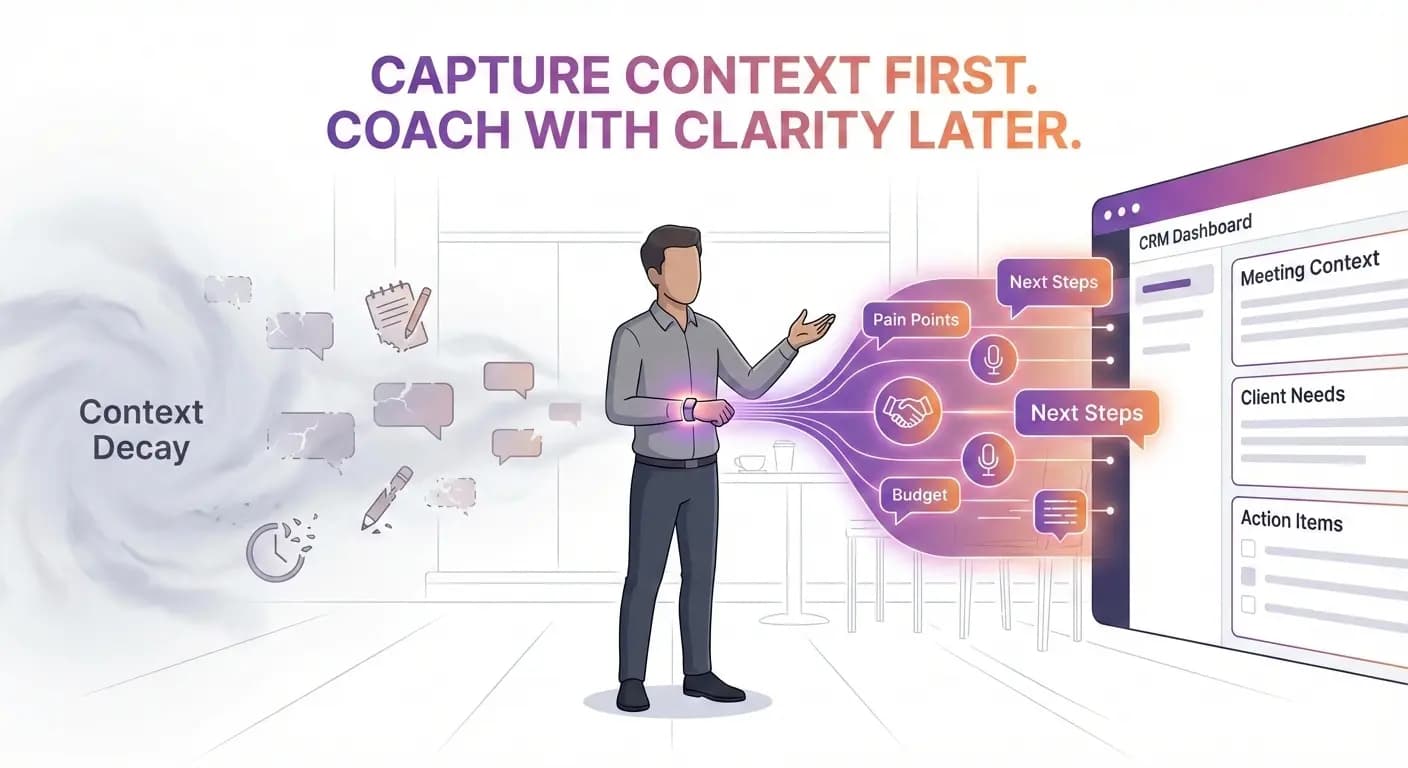
A site visit ends, the rep drives to the next stop, and the details start fading before anyone opens a laptop. By evening the appointment says "met with customer," or it says nothing. We wrote about this pattern in why CRM systems fail in field sales: when capture depends on memory and after-hours typing, the record is thin by design.
For sales ops and CRM admins, the cost shows up as data quality. Activities are logged late or never. Contacts who were in the room never get attached. Next steps live in a rep's head, so a manager reviewing the opportunity sees a date and little else.
Where Copilot for Sales stops
Microsoft Copilot for Sales is a good fit for Teams meetings and calls. It can summarize them and help save AI notes to CRM, because the conversation already happened inside Microsoft's tools.
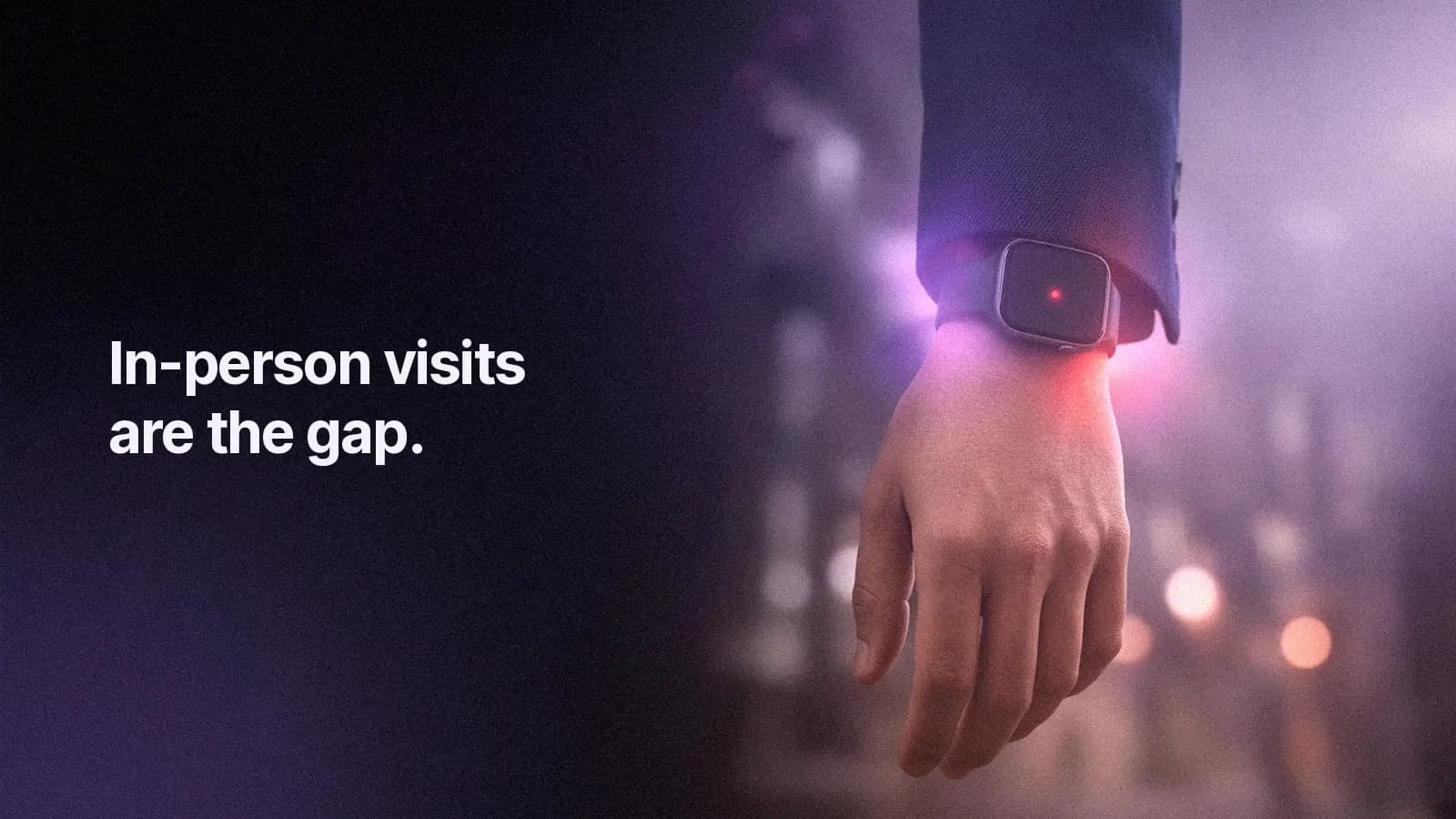
In-person visits are the gap. A walk through a customer's production line, a lunch with a plant manager, or a conversation at a distributor's counter never touches Teams. For a field team, that is most of the week.
So the question for a D365 shop is simple: how do face-to-face meetings get the same treatment Teams meetings already get?
Why phone apps and check-in forms fall short
Most field options ask the rep to do something visible in the middle of the conversation. Open an app, hold up a phone, fill in a check-in note, or type on a tablet. Check-in tools that add notes or attachments to a D365 record still depend on the rep typing the notes.
We called this the Memory Trap in the hidden flaw in in-person sales recording tools. When the tool needs the rep to pull out a device in front of the customer, the rep favors the conversation, and the capture never happens.
How it works on Apple Watch
Listel launched on Apple Watch in October (see what's new). The Watch app is an alternative to the Listel wearable, for reps who forgot the device, don't have one yet, or would rather use the Watch they already wear.
Start recording from the wrist
A rep can start a recording in a few ways, whichever fits the moment:
- From the Listel app on the Watch
- From the Smart Stack
- From a Listel complication on the watch face
- With Siri
- With the Action button on Apple Watch Ultra
Keep your wrist down
Recording keeps going with the wrist down, so the rep can shake hands, take notes on a print, or walk the line without holding anything up.
Linked to the next meeting
The Watch app links the recording to your next calendar meeting. With Dynamics 365 connected, reps' D365 appointments also show up in the Listel app, refreshed every 15 minutes, so the attendees are named for them.
Hands off to iPhone
When the conversation ends, the recording hands off to the iPhone, where Listel writes the notes and the rep reviews and syncs.
Works without signal
Basements, plant floors and rural sites often have no coverage. The Watch records offline and uploads later, once it can.
What gets written to the Dynamics 365 appointment
Each Listel conversation becomes one appointment in Dynamics 365. Here is what lands on it, based on our Dynamics 365 integration:
-
The correct appointment. Notes sync to the appointment the rep recorded from. If there was no calendar event, the rep picks one or creates a new one.
-
A Note with the summary, highlights and next steps. The rep can edit all of it before syncing.
-
People matched to contacts. Each person in the conversation is matched to a Dynamics contact. The rep can change a match, skip a person, or create a new contact.
-
Attachments, if the rep wants them. The recap PDF and the transcript can be attached as Notes. The rep chooses per sync.
-
Marked completed. The appointment is marked completed by default, and the rep can turn this off. Completing it does not change the meeting in Outlook or email attendees.
-
Written as the rep. Every record is created by and owned by the rep's own Dynamics user, and their own security role applies.
Listel never changes the subject or description of an existing appointment. If a rep syncs the same conversation again, the new notes replace the earlier Listel notes so the record doesn't fill up with duplicates.
What CRM admins and sales ops should know
Setup is a one-time admin job. Your Listel organization owner or admin connects Dynamics 365 from Integrations settings, picks the environment, and Listel links each team member to their Dynamics user automatically by email or Microsoft sign-in name. The Team panel shows who is linked, and the admin can fix any "Not found" rows. Reps don't set anything up.
A few details admins tend to ask about:
-
Each rep who syncs needs to be an enabled, licensed Dynamics 365 user, linked to their Listel account.
-
Nothing is ever written under the admin's name on a rep's behalf. If a rep isn't linked yet, the app tells them to contact their organization owner.
-
Listel never adds anyone as an attendee.
-
CRM sync, including Dynamics 365, is included in the Core Seat.
On data: Listel never sells customer data or trains on it, and each company owns its own data.
If you'd like help with implementation or configuration, Listel works with an official Microsoft Dynamics 365 channel partner and can make an introduction.
Getting consent in the room
Recording a conversation in person starts with asking. A simple line at the top of the meeting works: "Mind if I record this so I can keep my eyes on you instead of my notepad? I'll send you a recap." Record once they agree, and stop if anyone would rather you didn't.
Consent and notice rules vary by state and country, and some customer sites have their own policies. Align with your legal team on what reps say and where they record. This section is general guidance. It isn't legal advice.
Watch or wearable: which should your reps use?
Both capture the conversation and sync it to Dynamics 365 the same way. The Listel wearable is built for hands-free capture, and it includes a visible LED so recording is never hidden. The Watch app is there when the device is in the truck, when a new rep hasn't received one yet, or when a rep simply prefers their Watch. The same applies to busy event weeks, which we covered in trade show conversations to CRM.
Frequently asked questions
How do field reps log in-person meetings in D365 without typing notes?
They record the conversation with Listel, from the Listel wearable or the Listel app on Apple Watch or iPhone. Listel writes a summary, highlights and next steps, matches the people to Dynamics contacts, and the rep syncs it to the matching D365 appointment from their phone.
Does Copilot for Sales work for in-person meetings that aren't on Teams?
Microsoft Copilot helps with Teams meetings and calls. Face-to-face visits that never happen on Teams are the gap. Listel captures those in-person conversations and syncs the notes to the Dynamics 365 appointment.
Is there an Apple Watch app that syncs meeting notes to D365?
Yes. Listel for Apple Watch records from the wrist, hands the conversation off to iPhone, and Listel syncs the summary, next steps and matched contacts to the matching Dynamics 365 appointment.
What gets saved to the D365 appointment after an in-person conversation?
A Note with the summary, highlights and next steps; the people in the conversation matched to Dynamics contacts; and, if the rep chooses, the recap PDF and transcript as attachments. The appointment is marked completed by default, and everything is written as the rep's own Dynamics user.
How do you get recording consent for in-person sales conversations?
Ask at the start of the meeting, in plain words, and record only once the customer agrees. Consent and notice rules vary by location, so align with your legal team on the wording reps use. It is general guidance. It isn't legal advice.
Do I need a separate wearable to capture in-person conversations?
No. The Listel wearable is built for hands-free capture, and the Listel Apple Watch app is an alternative for reps who forgot the device, don't have one yet, or would rather use their Watch. Both sync to Dynamics 365 the same way.
Get your next site visit into Dynamics 365
Download Listel for Apple Watch and connect Dynamics 365 so your next in-person meeting lands on the right appointment.
Rolling out to a field team? See pricing.